
Option 1: Add the current structure as a tab
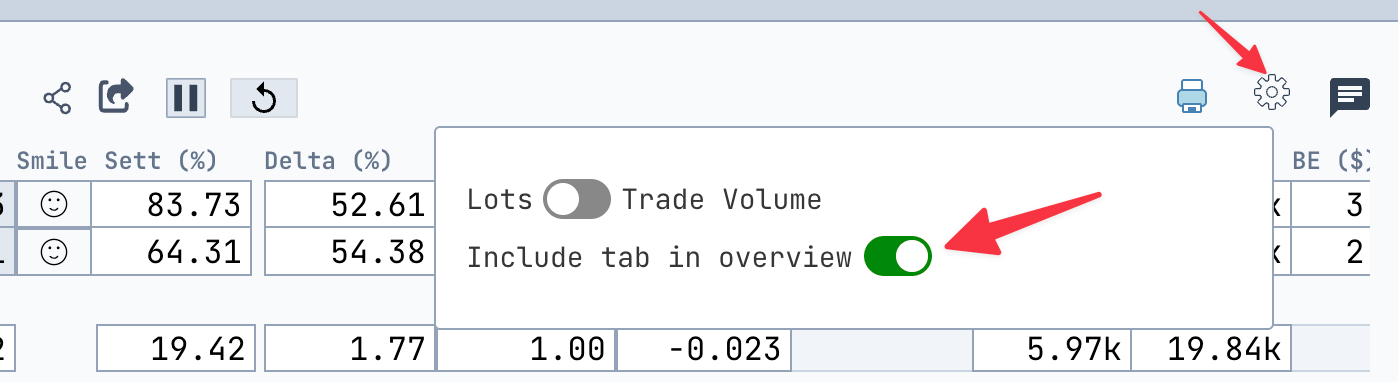
- Locate the gear icon (⚙️) at the top-right of your structure.
- Click it to open the settings menu.
- Toggle the “Include tab in overview” option to on (green).
- Your current structure will now appear as a tab in the Quote page for easy access and comparison.
Tip: This is great for keeping your most relevant or active structures visible at all times.
Option 2: Load multiple quotes via the tab overview
- Go to the tab overview section on the Quote page.
-
In the input box labeled
Enter multiple queries, one per line..., paste or type multiple quote names, each on a new line. - Click Run Queries.
-
All the quotes will be parsed and loaded into the Quote page.

⚠️ Note: This will not automatically create new tabs for each quote.If you want to view a specific quote in full detail in a separate tab:
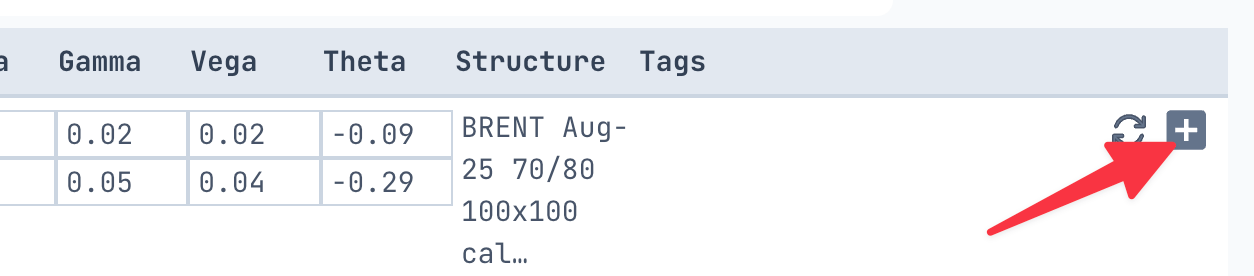
- Simply click the ➕ (plus) button next to the quote you’re interested in. This will open a new tab with a full analysis for that quote.