


Key Features
-
Trade List Table
Each row represents a saved trade, including columns like:
- Tab Title: Name you assigned (or default “New tab” if unnamed)
- Tags: Custom tags for easy filtering
- Structure Name: Type of structure (e.g.
call spread,put,call) - Position Date: Execution position date
- Product: Underlying product/instrument
- Shared: Indicates if the trade is shared with others
- Created On: Date the trade was saved

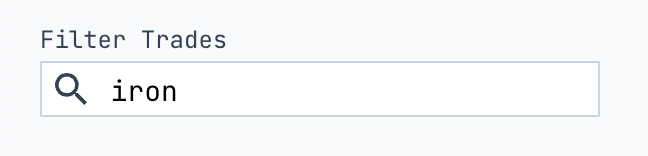
- Filter Trades Use the search bar to filter by trade name, ID, period, or tag.
- Bulk Actions
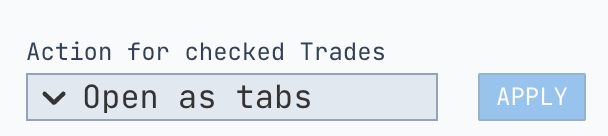
Select multiple trades using checkboxes and choose an action:
- Open as tabs: Load selected trades into the workspace as tabs
- Delete: Remove all selected trades
-
Share: Share selected tabs with your colleagues (coming soon)
Tips
- Use meaningful tab names and tags for easier filtering.
- Sort any column by clicking the arrows in the header.
- Use the “Shared” column to collaborate with teammates.